

Users of iMessage for the iPad, iPhone, or macOS may experience a problem where iMessage stops syncing and says “Syncing Paused” in the app.
These steps typically solve this problem:
iPhone & iPad
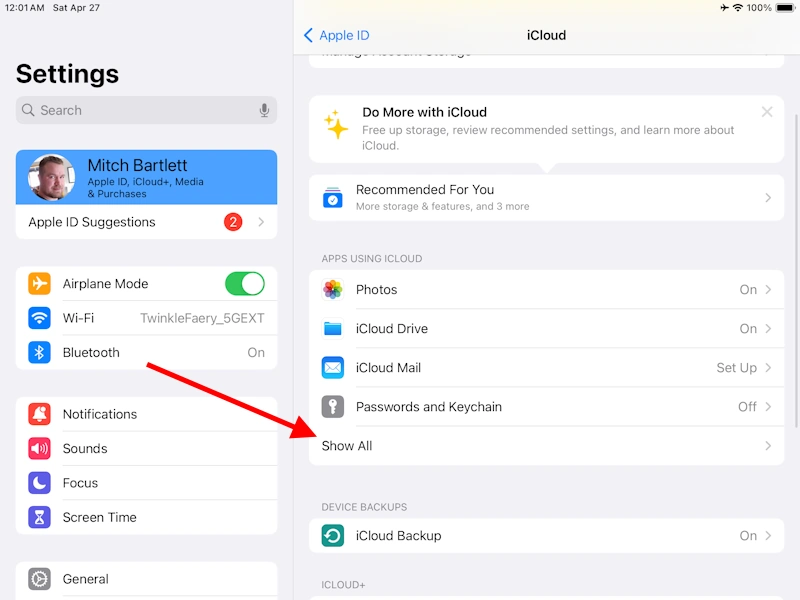
- Open the Settings app.
- Tap your Apple ID picture located at the upper-left part of the screen.

- Tap iCloud.

- Tap Show All.
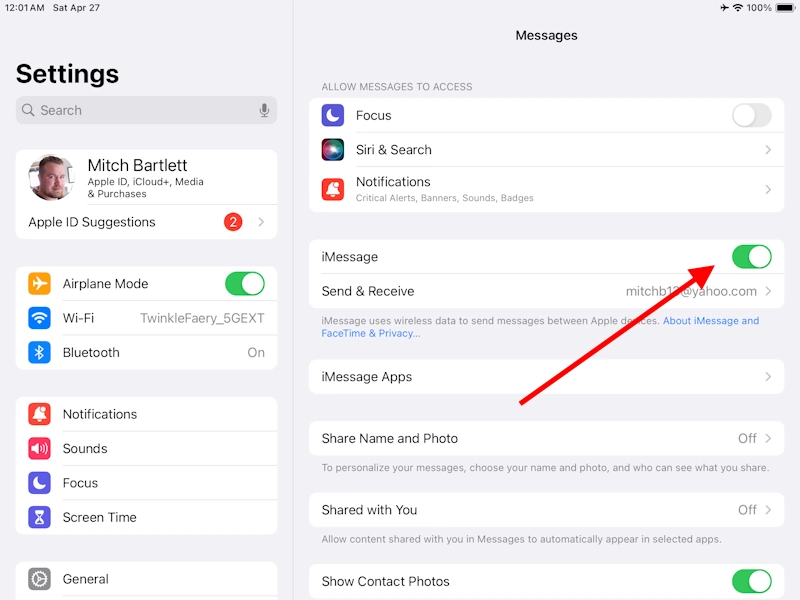
- Tap Messages in iCloud.
- Make sure that Use on this iPad or Use on this iPhone is set to On.



macOS
- Choose Apple menu > System Settings, then select Apple ID.

- Click iCloud.
- Select Show All.
- Select Messages in iCloud.
- Make sure that Use on this iPad or Use on this iPhone is set to On.


If these steps didn’t work for you, you may also want to try:
- Restarting the device.
- Ensuring you have enough storage space in your iCloud account.
- Upgrade to the latest version of the operating system (macOS, iOS, iPadOS, etc.)
Leave a Reply
You must be logged in to post a comment.